I know its kinda late, but someone had asked for another aria2 package, so here it is! Again, its not professionally built, but it will work most probably. Check it out!
aria2 package!
Monday, April 23, 2007

Sunday, April 22, 2007
New Transmission stable and svn Ubuntu Edgy packages!
Hello all, I just built two new Ubuntu Edgy packages of Transmission. Take in account that this are not professionally built packages as they were built with checkinstall. Nevertheless they should work properly on most systems as their dependencies are not weird or anything.
Downloads:
Stable 0.7 package!
SVN 1773 package!
Downloads:
Stable 0.7 package!
SVN 1773 package!
Tuesday, February 13, 2007
Why my IM client is web based
I have given up on Gaim. I just got fed up with its constant switchboard errors, telling me the message couldn't be sent, when it fact it was, or the other way around. Its interface is clunky, its not nice at all. I wanted an alternative, a client that wouldn't fail when sending simple text messages, that wouldn't disconnect or close whenever he decided to.
I thought of trying Kopete, but I have never fancied its looks and ugly interface. The other, less-know clients are just one, or both of two things: worse functionality-wise than Gaim or Kopete, or just plain ugly.
I want a nice interface people, one I can look at without wishing for Microsoft's Live MSN Messenger. Yes, you hard me. Microsoft's product is free, it doesn't have as much bugs or an ugly interface. Yes, it has ads, but if you're smart enough you should have figured by now that a simple patch will remove them and allow you to customize it to your liking. You can even play a game of sudoku or minesweeper with your mates while you chat.
So, back to the IM client question: what to use? Well, at school I used a web messenger that could connect to various protocols (GTalk, Yahoo Messenger, MSN, etc.) called Meebo. So I thought I'd give it a chance because, well, no other client seemed to satisfy my needs.

I created an account so my settings and preferences wouldn't be lost every time I logged off. The moment you visit Meebo's website you just know its a quality product. Everything feels so polished, and it works as expected. Meebo allows you to connect to various instant messaging networks: Google Talk, Yahoo Messenger, AIM, and MSN. I just use MSN, mind you.
What's the advantage of using Meebo over, say, Gaim? Well, first of all I know all my settings and preferences will be the same no matter where I use it, bet a Windows computer, a Mac, or a Sun workstation. It will always look the same, and behave the same. It is consistent, that's something I appreciate. Also, it saves space on my desktop. Because everything goes on on one of my browser's tab it doesn't fill my desktop with a lot of windows, so its nice. If you want to have it on your desktop but you want to minimize your browser, you can. Just click on the "Pop out" button that every window has and it will spawn on your desktop as an independent window, you can even do that to your buddy list.

You want to use a custom display picture? Sure, just look at the left side of the Meebo page, click on that image, and select one of the preset pictures or select one from your computer. Easy as pie! Same goes for setting your nickname. Oh, and talking about nicknames, you can add nicknames to your contacts. In fact, the only critical feature Meebo lacks is file transfer, but you can always use gmail or yousendit. All in all, Meebo is a great web messenger and it looks good to boot! Meebo is good enough that I use it daily now, instead of the clunky Gaim client.
I thought of trying Kopete, but I have never fancied its looks and ugly interface. The other, less-know clients are just one, or both of two things: worse functionality-wise than Gaim or Kopete, or just plain ugly.
I want a nice interface people, one I can look at without wishing for Microsoft's Live MSN Messenger. Yes, you hard me. Microsoft's product is free, it doesn't have as much bugs or an ugly interface. Yes, it has ads, but if you're smart enough you should have figured by now that a simple patch will remove them and allow you to customize it to your liking. You can even play a game of sudoku or minesweeper with your mates while you chat.
So, back to the IM client question: what to use? Well, at school I used a web messenger that could connect to various protocols (GTalk, Yahoo Messenger, MSN, etc.) called Meebo. So I thought I'd give it a chance because, well, no other client seemed to satisfy my needs.

I created an account so my settings and preferences wouldn't be lost every time I logged off. The moment you visit Meebo's website you just know its a quality product. Everything feels so polished, and it works as expected. Meebo allows you to connect to various instant messaging networks: Google Talk, Yahoo Messenger, AIM, and MSN. I just use MSN, mind you.
What's the advantage of using Meebo over, say, Gaim? Well, first of all I know all my settings and preferences will be the same no matter where I use it, bet a Windows computer, a Mac, or a Sun workstation. It will always look the same, and behave the same. It is consistent, that's something I appreciate. Also, it saves space on my desktop. Because everything goes on on one of my browser's tab it doesn't fill my desktop with a lot of windows, so its nice. If you want to have it on your desktop but you want to minimize your browser, you can. Just click on the "Pop out" button that every window has and it will spawn on your desktop as an independent window, you can even do that to your buddy list.

You want to use a custom display picture? Sure, just look at the left side of the Meebo page, click on that image, and select one of the preset pictures or select one from your computer. Easy as pie! Same goes for setting your nickname. Oh, and talking about nicknames, you can add nicknames to your contacts. In fact, the only critical feature Meebo lacks is file transfer, but you can always use gmail or yousendit. All in all, Meebo is a great web messenger and it looks good to boot! Meebo is good enough that I use it daily now, instead of the clunky Gaim client.
Tuesday, February 06, 2007
Calling all (Linux) gamers!
People, please read this article and digg it! Maybe Valve will come to their senses and actually do something about it!
Valve and Linux and Wine... Oh my!
Valve and Linux and Wine... Oh my!
How to manage source packages on Ubuntu
Sometimes you want the latest version of a particular application, but you find out that it isn't available from the Ubuntu repositories just yet, and most probably it won't be included until the next version of Ubuntu is released. So what to do? You can use the older version that is included in the repositories or build the latest version from source.
But source packages are inconvenient because you don't really know what's installed, or where it is installed. And, most of the time, you can't uninstall them unless you delete every file that was installed by hand. So, you'll have to stick with the repository version, right? Well, no because there exists a solution to the problems I just mentioned.
You can use a source package manager to track the installation of source packages. Some of these package managers will let you uninstall all the packages you have added to your system, among other useful features. One source package manager I like and that I've found to be the one that works best is called Paco, a short name for Package Organizer.
Paco was originally written to help manage the installation of software in Linux From Scratch, where everything is built from source and there is no package management built in.
How does Paco work? Here's a description from its homepage:
Paco is able to show information about the applications you have installed, and it also lets you uninstall them in a very easy way. It also provides a basic graphical interface called GPaco.
"Okay, that's all cool and all, but where do I get it and how do I use it?" you may ask. Well, you can get Paco from its homepage. I'll give a brief description on how to use it in the following lines. To install it please read the README file that's inside the tarball.
To install a source package with Paco simply begin as you usually do:
To remove a package you can type sudo paco -rx --batch package-name - the package name must be the one Paco has logged in its database. To see the packages you have installed in your system you can issue the following command in a terminal: paco -av or paco -av --one-column.
And that's all folks! Be sure to read the MAN page for further and more complete instructions!
But source packages are inconvenient because you don't really know what's installed, or where it is installed. And, most of the time, you can't uninstall them unless you delete every file that was installed by hand. So, you'll have to stick with the repository version, right? Well, no because there exists a solution to the problems I just mentioned.
You can use a source package manager to track the installation of source packages. Some of these package managers will let you uninstall all the packages you have added to your system, among other useful features. One source package manager I like and that I've found to be the one that works best is called Paco, a short name for Package Organizer.
Paco was originally written to help manage the installation of software in Linux From Scratch, where everything is built from source and there is no package management built in.
How does Paco work? Here's a description from its homepage:
When installing a package from sources, paco wraps the "make install" command (or whatever is needed to install the files into the system), and generates a log containing the list of all installed files.
Technically, this is done by preloading a shared library before installation using the environment variable LD_PRELOAD. During installation this library catches the system calls that cause filesystem alterations, logging the created files.
Paco is able to show information about the applications you have installed, and it also lets you uninstall them in a very easy way. It also provides a basic graphical interface called GPaco.
"Okay, that's all cool and all, but where do I get it and how do I use it?" you may ask. Well, you can get Paco from its homepage. I'll give a brief description on how to use it in the following lines. To install it please read the README file that's inside the tarball.
To install a source package with Paco simply begin as you usually do:
- Open a terminal.
- Decompress the tarball.
- Change into the source directory of the application you want to install, usually the directory extracted from the tarball.
- Do the usual ./configure and make steps.
- After make has finished type sudo paco -lD "make install" to install the application. Paco will log it into its database to provide information about it and to allow its removal at a later time.
To remove a package you can type sudo paco -rx --batch package-name - the package name must be the one Paco has logged in its database. To see the packages you have installed in your system you can issue the following command in a terminal: paco -av or paco -av --one-column.
And that's all folks! Be sure to read the MAN page for further and more complete instructions!
Saturday, February 03, 2007
Sups all!
Hello all, this blog was recently reviewed at blograter.com or something like that, and it just inspired me to keep on posting. First up, what I've been up to during these days:
- I became an official contributor to the Compiz project. If you don't know what the Compiz project is then you can go to the homepage: http://www.go-compiz.org
- I got a new wide screen monitor, and Ubuntu detected it and set it up with the proper resolution when I hooked it up. Its a Samsung SyncMaster 940BW by the way. Looks sharp and it saved me a lot of desk space.
- I learned some Ruby programming with a book I found online. Its called Mr. Neighborly's Humble Little Ruby Book. I wanted to buy it, because its very good, but unfortunately the store that sells it doesn't ship to P.O. Boxes, so I'm out of luck. I highly recommend it if you want to learn Ruby. Check it out here: http://www.humblelittlerubybook.com
- I don't know if I told you all, but I tried to install Arch Linux, but I couldn't get Xorg to work correctly, so I said "what the hell" and went back to Edgy. It's all been great ever since!
- I have been gaming a lot more now, which is probably why I haven't posted that much lately, that plus classes started four weeks ago. Yikes!
Monday, December 04, 2006
Update and new packages
Hello all, its been a long time since my last post. It was mostly due to school, the final weeks were rough, but all in all I'm satisfied with the result. I passed all the courses, and got some good grades to brag about, haha. Anyway, I've got two new packages and a script for ya to use.
I've got two packages for two GTK2 engines, those being Murrine and Candido. Get them here and here, respectively. And well, I got tired of typing sudo apt-get update && sudo apt-get upgrade && sudo apt-get autoremove, so I just made myself a small bash script called update.
The script is as follows:
#!/bin/bash
# Date: December 04, 2006
sudo apt-get update && sudo apt-get upgrade && sudo apt-get autoremove
You might also want to do this:
sudo ln -s /path-to-script/update.sh /usr/bin/update
That way you just have to type 'update' into a terminal and your whole system will be automatically upgraded and old, unneeded packages removed.
I've got two packages for two GTK2 engines, those being Murrine and Candido. Get them here and here, respectively. And well, I got tired of typing sudo apt-get update && sudo apt-get upgrade && sudo apt-get autoremove, so I just made myself a small bash script called update.
The script is as follows:
#!/bin/bash
# Date: December 04, 2006
sudo apt-get update && sudo apt-get upgrade && sudo apt-get autoremove
You might also want to do this:
sudo ln -s /path-to-script
That way you just have to type 'update' into a terminal and your whole system will be automatically upgraded and old, unneeded packages removed.
Friday, October 20, 2006
Go faster than Firefox!!!
Just a few minutes ago I was happily browsing the Ubuntu Forums and I stumbled upon a post about getting Ubuntu to run as fast as Arch Linux. In that post, the author mentioned this new (to me) web browser called Swiftfox, and I decided to find out if it was worth a download.
When I visited the Swiftfox website, I figured this was just an optimized build of Mozilla Firefox, but still I decided to give it a go. They have this small installer, that basicaly is just a small bash script, but its oh so very easy to use! You chose a build that suits your specific processor, and it will fetch it for you from the Swiftfox site, install it and add it to the Applications menu in Ubuntu. That's better than building Firefox from source!
Now it was the time to see if the optimization was real. After clicking the icon, almost a second after I had a nice Firefox windows with ALL the extensions loaded and working. It started way faster than the Firefox build that comes bundled with Ubuntu, way way faster.
All in all, I've found something that's even better and faster than the official build of Firefox. Give it a try!
Get Swiftfox!
When I visited the Swiftfox website, I figured this was just an optimized build of Mozilla Firefox, but still I decided to give it a go. They have this small installer, that basicaly is just a small bash script, but its oh so very easy to use! You chose a build that suits your specific processor, and it will fetch it for you from the Swiftfox site, install it and add it to the Applications menu in Ubuntu. That's better than building Firefox from source!
Now it was the time to see if the optimization was real. After clicking the icon, almost a second after I had a nice Firefox windows with ALL the extensions loaded and working. It started way faster than the Firefox build that comes bundled with Ubuntu, way way faster.
All in all, I've found something that's even better and faster than the official build of Firefox. Give it a try!
Get Swiftfox!
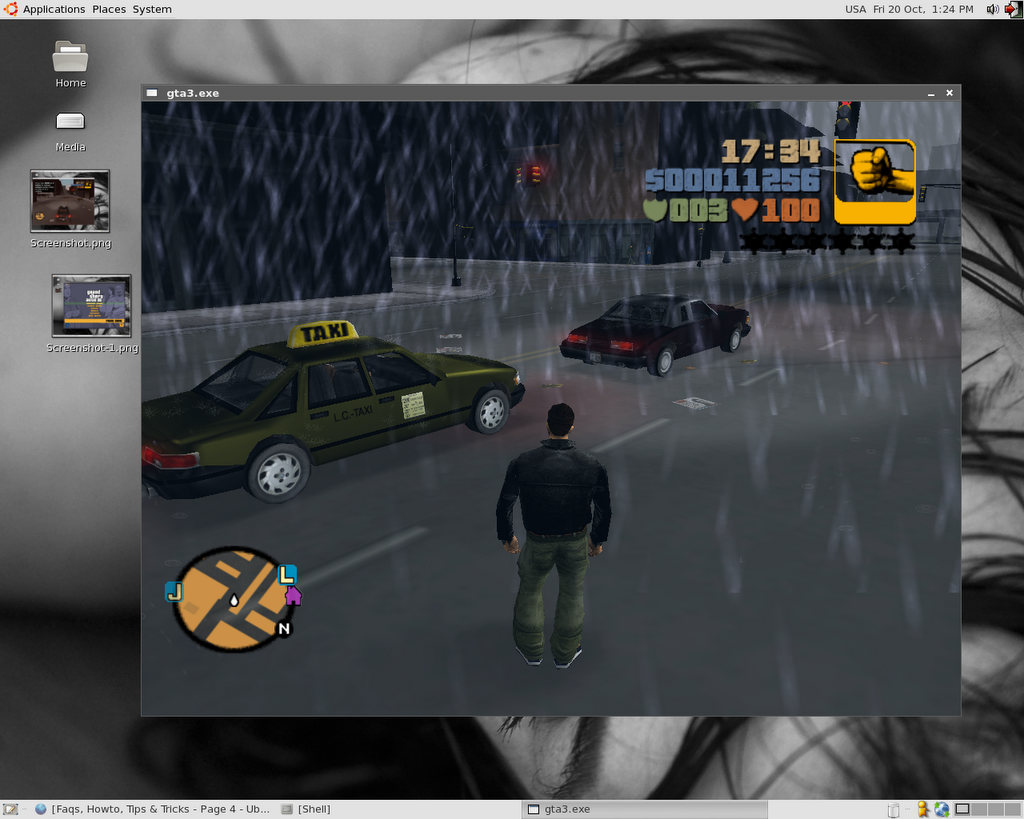
How to run GTA 3 with Wine
This how-to will walk you through installing Grand Theft Auto 3 on Ubuntu Dapper with Wine version 0.9.9.
This how-to is the result of many hours spent dealing with wine-cvs, the latest stable wine, and the 'standard' wine that Dapper provides in the repositories. I HAD to use the version dapper provides because the newer version wouldn't let me install the game (it crashed), and the cvs version simply did not work.
This is a long process. First, get a Windows machine and install GTA 3 on it. Next go and download the patch to upgrade the game to version 1.1.
Click here to download the patch!
Now, insert the second CD into your drive and open it with windows explorer. Navigate to the 'audio' folder and copy everything that is inside it to C:/Program Files/Rockstar Games/GTAIII/audio/
As you know, wine doesn't have any form of copy protection support built in, so in order to play we need a game 'fix' or 'crack' to disable this copy protection. If this how-to were for Windows machines, then I'd be in trouble, but this is so we can play on Linux. You need to find a decent no-cd crack, but I did the job for you.
Click here to download the no-cd crack!
Unzip the crack. Inside you'll find an unrar_me.rar file. Unrar it (I assume you know how to use WinRar). Now you've got two files: gta3.exe and a text file; ignore the text file. Go to C:/Program Files/Rockstar Games/GTAIII/ and rename gta3.exe (the one in that directory) to gta3.bak. Now copy the cracked gta3.exe to the game directory. Double click it to play, this will create some files and compress the textures for that particular computer. Complete the first mission.
That was the easy part, but now we need the game on Linux. Go to your Linux computer and install wine.
sudo apt-get install wine
This should install wine 0.9.9, the version you need to run the game. Once wine is installed open up a terminal and type winecfg to run wine's configuration utility.
On the Applications tab leave everything as it is, move on to the Graphics tab. In it check the boxes for "Enable desktop double buffering", "Allow the window manager to control the windows", "Emulate a virtual desktop" (set it to 800x600), and "Allow Pixel Shader". On the Direct3D section, set the Vertrex Shader Support to "hardware".
Now move on to the Audio tab. Uncheck any boxes that are checked, then check the box for "ALSA Driver". On the DirectSound section set the Hardware Acceleration to "Emulation" and check the box for "Driver Emulation". After doing this you're finished with wine's setup.
Get your GTA 3 disks out and insert the first CD into your drive (in your Linux computer). Ubuntu will auto-mount it for you in /media/cdrom0, so open up a terminal and change to that directory. Once there type wine Setup.exe to install the game, it should install just fine.
Phew, alright, the game is installed, but you must patch it to version 1.1. Get the patch and save it in /home/your-user-name/.wine/drive_c/Program Files/Rockstar Games/GTAIII. Now change into that directory and run the patch with wine gta3patch.exe.
Ok, now get the crack and do the same you did on the windows machine to apply it. Then try and play with wine gta3.exe (while on the game's install directory). You may notice that when the game is compressing the textures, the game will crash, and you won't be able to play it at all.
This is where our Windows instalation comes in. Go to your Windows machine and be ready to burn some cd's or a dvd. You need to transfer ALL of the files installed on the Windows machine to your Linux machine. The files I'm talking about are all the ones in C:/Program Files/Rockstar Games/GTAIII/, so its better to just copy the whole GTAIII directory.
Once you've got the files on some cd's, dvd, or external hard drive go to your Linux machine and rename the GTAIII folder in home/your-user-name/.wine/drive_c/Program Files/Rockstar Games/GTAIII to GTA3.
Then do:
mkdir /home/your-user-name/.wine/drive_c/Program Files/Rockstar Games/GTAIII
After that you must copy everything in you cd's, dvd, or external hard drive to that directory.
Now go to /home/your-user-name/.wine/drive_c/Program Files/Rockstar Games/GTAIII (the directory where you pasted all files from the windows instalation in) and play with wine gta3.exe.
The game should launch and all should be good. Congratulations!!!
Now that the game is running you can do
rm -rvf /home/your-user-name/.wine/drive_c/Program Files/Rockstar Games/GTA3
to get rid of those extra files.
Known problems:

This how-to is the result of many hours spent dealing with wine-cvs, the latest stable wine, and the 'standard' wine that Dapper provides in the repositories. I HAD to use the version dapper provides because the newer version wouldn't let me install the game (it crashed), and the cvs version simply did not work.
This is a long process. First, get a Windows machine and install GTA 3 on it. Next go and download the patch to upgrade the game to version 1.1.
Click here to download the patch!
Now, insert the second CD into your drive and open it with windows explorer. Navigate to the 'audio' folder and copy everything that is inside it to C:/Program Files/Rockstar Games/GTAIII/audio/
As you know, wine doesn't have any form of copy protection support built in, so in order to play we need a game 'fix' or 'crack' to disable this copy protection. If this how-to were for Windows machines, then I'd be in trouble, but this is so we can play on Linux. You need to find a decent no-cd crack, but I did the job for you.
Click here to download the no-cd crack!
Unzip the crack. Inside you'll find an unrar_me.rar file. Unrar it (I assume you know how to use WinRar). Now you've got two files: gta3.exe and a text file; ignore the text file. Go to C:/Program Files/Rockstar Games/GTAIII/ and rename gta3.exe (the one in that directory) to gta3.bak. Now copy the cracked gta3.exe to the game directory. Double click it to play, this will create some files and compress the textures for that particular computer. Complete the first mission.
That was the easy part, but now we need the game on Linux. Go to your Linux computer and install wine.
sudo apt-get install wine
This should install wine 0.9.9, the version you need to run the game. Once wine is installed open up a terminal and type winecfg to run wine's configuration utility.
On the Applications tab leave everything as it is, move on to the Graphics tab. In it check the boxes for "Enable desktop double buffering", "Allow the window manager to control the windows", "Emulate a virtual desktop" (set it to 800x600), and "Allow Pixel Shader". On the Direct3D section, set the Vertrex Shader Support to "hardware".
Now move on to the Audio tab. Uncheck any boxes that are checked, then check the box for "ALSA Driver". On the DirectSound section set the Hardware Acceleration to "Emulation" and check the box for "Driver Emulation". After doing this you're finished with wine's setup.
Get your GTA 3 disks out and insert the first CD into your drive (in your Linux computer). Ubuntu will auto-mount it for you in /media/cdrom0, so open up a terminal and change to that directory. Once there type wine Setup.exe to install the game, it should install just fine.
Phew, alright, the game is installed, but you must patch it to version 1.1. Get the patch and save it in /home/your-user-name/.wine/drive_c/Program Files/Rockstar Games/GTAIII. Now change into that directory and run the patch with wine gta3patch.exe.
Ok, now get the crack and do the same you did on the windows machine to apply it. Then try and play with wine gta3.exe (while on the game's install directory). You may notice that when the game is compressing the textures, the game will crash, and you won't be able to play it at all.
This is where our Windows instalation comes in. Go to your Windows machine and be ready to burn some cd's or a dvd. You need to transfer ALL of the files installed on the Windows machine to your Linux machine. The files I'm talking about are all the ones in C:/Program Files/Rockstar Games/GTAIII/, so its better to just copy the whole GTAIII directory.
Once you've got the files on some cd's, dvd, or external hard drive go to your Linux machine and rename the GTAIII folder in home/your-user-name/.wine/drive_c/Program Files/Rockstar Games/GTAIII to GTA3.
Then do:
mkdir /home/your-user-name/.wine/drive_c/Program Files/Rockstar Games/GTAIII
After that you must copy everything in you cd's, dvd, or external hard drive to that directory.
Now go to /home/your-user-name/.wine/drive_c/Program Files/Rockstar Games/GTAIII (the directory where you pasted all files from the windows instalation in) and play with wine gta3.exe.
The game should launch and all should be good. Congratulations!!!
Now that the game is running you can do
rm -rvf /home/your-user-name/.wine/drive_c/Program Files/Rockstar Games/GTA3
to get rid of those extra files.
Known problems:
- The mouse on the menus doesn't work, you must use the keyboard arrows.
- Sound 'lags' a bit, but it doesn't bother at all, its just a second behind of what happens on screen.
Thursday, October 19, 2006
aria2 Packages
Hello good people. Today I built two new packages, one is for ares, a package requiered by the nice p2p/bittorrent/metalink client aria2. Of course, the second package is aria2 itself, which was built on my ubuntu 6.06.1 system.
The aria2 package was built without libgcrypt because I couldn't get it to compile because it didn't find libgpg-error, although it was already installed. This does not mean this package lacks checksum support, as it was built with OpenSSL.
I hope you enjoy the packages!
Download the ares package!
Download the aria2 package!
The aria2 package was built without libgcrypt because I couldn't get it to compile because it didn't find libgpg-error, although it was already installed. This does not mean this package lacks checksum support, as it was built with OpenSSL.
I hope you enjoy the packages!
Download the ares package!
Download the aria2 package!
Wednesday, October 11, 2006
New Transmission Package!
Well, I am no longer using this particular bittorrent client, but I think its still worth building packages for those who are using it, so here is the latest package. This one was built with checkinstall a few minutes ago with the latest svn source (r991 at the moment). I hope you enjoy this one! :D
Download the package!
Download the package!
Tuesday, October 10, 2006
Busy as hell
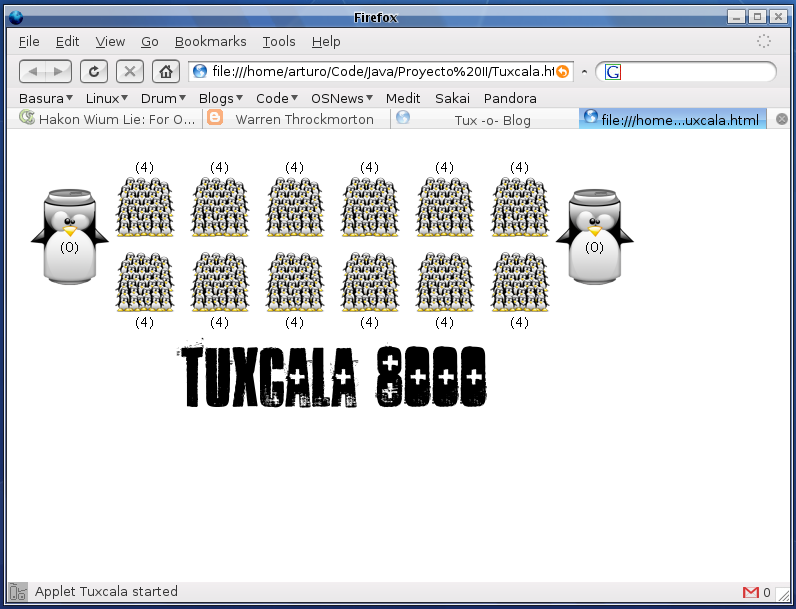
Well, I know there has been a lack of posts these past two weeks. Its just that life caught up with me, and so homework and studying became part of my life yet again. However, only a month remains before I get some much-needed rest. Be patient, more info will come your way.
As a sidenote, here is a screenshot of a programming project some friends and I have been working on. Its a Java game based on the ancient game Mancala, but with tuxes, so its Tuxcala! I hope that it will be published here along with its source code when its ready.
Sunday, October 01, 2006
How to write a good How To
Whether you are trying to contribute to an Open Source project or you want to attract traffic to your blog, How To's can help you. This is a list of things to keep in mind when writing a How To.
read more | digg story
read more | digg story
Monday, September 11, 2006
BSD Vs. Linux - What you did not Know
While there's overwhelming similarity between the operating systems in most cases, there are also a lot of differences. As you probe more into the differences, you find that they emerge from deep-seated disagreements.
read more | digg story
read more | digg story
Sunday, September 10, 2006
New Ubuntu team to focus on desktop effects a la XGL, AIGLX
Mark Shuttleworth says he's "pleased to see John Vivirito announcing a desktop-effects team for Ubuntu, that will focus on the integration of 3D technology into the desktop like Xgl, Compiz and AIGLX."
read more | digg story
read more | digg story
An even better BitTorrent client for Linux!
Well, after all the problems with Transmission and popular trackers like OiNK and Demonoid I decided to try something else. I tried out Tribler, but it wasn't that good, so after snooping around the Ubuntu forums I found about this relatively new client called qBittorrent. At first I refused to use it, as I don't like running Qt apps under Gnome, but after searching some more, and not finding anything better I decided to go for it.
 The client is way better than anything I've used before. It even has an inbuilt torrent search plugin, like the famous uTorrent on windows. It also has all the major features you may need/want from a mature client.
The good news is that it is actively developed, it has a very nice and fresh look, and there's official Ubuntu and Debian packages on the download page and last time I checked it was in the repositories. That's a lot to say, because we now have official support from the qBittorrent team when packages don't work, etc.
All in all, its the best client I've used so far. Try it out!
 The client is way better than anything I've used before. It even has an inbuilt torrent search plugin, like the famous uTorrent on windows. It also has all the major features you may need/want from a mature client.
The good news is that it is actively developed, it has a very nice and fresh look, and there's official Ubuntu and Debian packages on the download page and last time I checked it was in the repositories. That's a lot to say, because we now have official support from the qBittorrent team when packages don't work, etc.
All in all, its the best client I've used so far. Try it out!
Wednesday, September 06, 2006
New Transmission package for Ubuntu
It's been quite a while since I wanted to upgrade Transmission and test the svn version, but Applecrow's download page gives a 404 error, so no svn debian package! So I thought I'd build one myself, and here it is, I give it to the world!
This package was built with the latest source tarball from Transmission's homepage using checkinstall. I need people to test it to see if it works properly.
The package installs Transmission to /opt/transmission
You might want to do this:
sudo ln -s /opt/transmission/bin/transmission-gtk /usr/bin/transmission-gtk
This will enable you to run Transmission by just typing 'transmission-gtk' into the terminal (without the quotes).
Download the package! - NOTE: A new package is already available, check the newer posts.
P.S. I need better hosting, if anyone can provide it please leave a comment with more info. Thanks!
This package was built with the latest source tarball from Transmission's homepage using checkinstall. I need people to test it to see if it works properly.
The package installs Transmission to /opt/transmission
You might want to do this:
sudo ln -s /opt/transmission/bin/transmission-gtk /usr/bin/transmission-gtk
This will enable you to run Transmission by just typing 'transmission-gtk' into the terminal (without the quotes).
Download the package! - NOTE: A new package is already available, check the newer posts.
P.S. I need better hosting, if anyone can provide it please leave a comment with more info. Thanks!
Free Linux Disks needs your support!
The folks at FreeLinuxDisk have 20,000 orders to fulfill with an additional 60-100 requests a day. To fulfill the orders in a timely fashion they have to buy an automated CD duplication machine ($4500 CDN). The goal is to raise $4,500 to purchase "Big Daddy Tux" in order to meet with the ongoing demand for Linux disks. Show them your support!
read more | digg story
read more | digg story
Tuesday, September 05, 2006
Free Linux Disks Delivers First Shipment
It is with great delight that I announce the first bulk shipment of free Linux disks from the Free Linux Disk project. This would not have been made possible without support from the contributors, the sponsors, and your donations. A huge thank you to everyone that continues to help and make the project a success.
read more | digg story
read more | digg story
Saturday, September 02, 2006
How to get the latest compiz packages on Ubuntu
It's really simple, actually. First you'll backup your sources.list file to be on the safe side, so do:
sudo cp -v /etc/apt/sources.list /etc/apt/sources.list-backup
Now we'll edit the file:
sudo gedit /etc/apt/sources.list
At the end of the file add one of these lines:
deb http://www.beerorkid.com/compiz dapper main
deb http://media.blutkind.org/xgl/ dapper main
deb http://ubuntu.compiz.net/ dapper main
Next you need to add the public key of the repository you chose, so run one of these commands:
wget http://www.beerorkid.com/compiz/quinn.key.asc -O - | sudo apt-key add -
wget http://media.blutkind.org/xgl/quinn.key.asc -O - | sudo apt-key add -
wget http://ubuntu.compiz.net/quinn.key.asc -O - | sudo apt-key add -
Now do:
sudo apt-get update
sudo apt-get dist-upgrade
Now all your compiz packages should be updated to their latest version. If you want to do it the graphical way, after doing the apt update go to System > Administration > Update Manager and it will list the available compiz updates, along with any other updates your system may require.
Also, if you installed XGL/Compiz following the Ubuntu Guide instructions, you may need to install cgwd, which is the windowd decorator recommended for compiz. So do this:
sudo apt-get install cgwd cgwd-themes gnome-compiz-manager
Gnome-compiz-manager is a graphical configuration tool for compiz, which allows to set how many virtual desktops you want, enable or disable effects, etc.
Cgwd-themes is a theme pack for cgwd.
Also, if you start compiz with /usr/bin/thefuture you need to edit it, because gnome-window-decorator is obsolete now.
Make it look like this:
xmodmap /usr/share/xmodmap/xmodmap.us
Remember to set the appropiate xmodmap!
UPDATE: The latest updates change the way Compiz starts and the thefuture script is no longer usefull.
To start Compiz add the following line to the 'Startup Programs' in System > Preferences > Sessions:
/usr/bin/compiz-start
And don't forget to remove the thefuture script from there too!
That's all, I hope this is usefull.
sudo cp -v /etc/apt/sources.list /etc/apt/sources.list-backup
Now we'll edit the file:
sudo gedit /etc/apt/sources.list
At the end of the file add one of these lines:
deb http://www.beerorkid.com/compiz dapper main
deb http://media.blutkind.org/xgl/ dapper main
deb http://ubuntu.compiz.net/ dapper main
Next you need to add the public key of the repository you chose, so run one of these commands:
wget http://www.beerorkid.com/compiz/quinn.key.asc -O - | sudo apt-key add -
wget http://media.blutkind.org/xgl/quinn.key.asc -O - | sudo apt-key add -
wget http://ubuntu.compiz.net/quinn.key.asc -O - | sudo apt-key add -
Now do:
sudo apt-get update
sudo apt-get dist-upgrade
Now all your compiz packages should be updated to their latest version. If you want to do it the graphical way, after doing the apt update go to System > Administration > Update Manager and it will list the available compiz updates, along with any other updates your system may require.
Also, if you installed XGL/Compiz following the Ubuntu Guide instructions, you may need to install cgwd, which is the windowd decorator recommended for compiz. So do this:
sudo apt-get install cgwd cgwd-themes gnome-compiz-manager
Gnome-compiz-manager is a graphical configuration tool for compiz, which allows to set how many virtual desktops you want, enable or disable effects, etc.
Cgwd-themes is a theme pack for cgwd.
Also, if you start compiz with /usr/bin/thefuture you need to edit it, because gnome-window-decorator is obsolete now.
Make it look like this:
#!/bin/bashcgwd & compiz --replace gconf decoration wobbly fade minimize cube rotate zoom scale move resize place switcher &
xmodmap /usr/share/xmodmap/xmodmap.us
Remember to set the appropiate xmodmap!
UPDATE: The latest updates change the way Compiz starts and the thefuture script is no longer usefull.
To start Compiz add the following line to the 'Startup Programs' in System > Preferences > Sessions:
/usr/bin/compiz-start
And don't forget to remove the thefuture script from there too!
That's all, I hope this is usefull.
Subscribe to:
Posts (Atom)
